

Whether you are doing high-quality video meetings with your clients or streaming gaming sessions with your friends, our premium USB video conferencing kits have your back.
USB streaming kits
Our USB video conferencing kits work with a range of select EOS and PowerShot cameras, but to make it easier, we have created video conferencing kits complete with everything you need.
All you need to do to use your Canon camera as a webcam is to read the easy and simple step by step guide below on how to setup your USB streaming kits. One last thing to mention, these Canon camera streaming kits work perfectly with popular video conferencing and live streaming platforms.
The EOS M50, EOS M6 Mark II and the PowerShot G7 X Mark III plus their kit accessories are built for clearer colour, higher image quality and adjustable focal length. For business professionals working from home, friends catching up and families meeting virtually, turning your EOS or PowerShot camera into a video conference webcam is what you need to stay connected.
To use your Canon camera as a webcam, download the EOS Webcam Utility software. You can download this software through clicking the links below.
Download for Windows
Download for Mac

Step two:
Next step connect your camera to the mains. Insert the DC coupler and connect the AC adapter, then plug your camera into the mains. Many of our cameras are compatible with mains power adapters that will replace your battery. Some camera’s such as the PowerShot G7 X Mark III video conferencing kit comes with two batteries. Each battery has up to 100 minutes of power so you can always stay connected wherever you are in the world.

Turn on the camera.

Put the camera into movie mode and switch to auto. This will ensure that you will always have the correct exposure.

Insert the USB cable into the camera and connect the other end to one of your USB ports on your computer.

Position your camera on the tripod and angle it towards you.
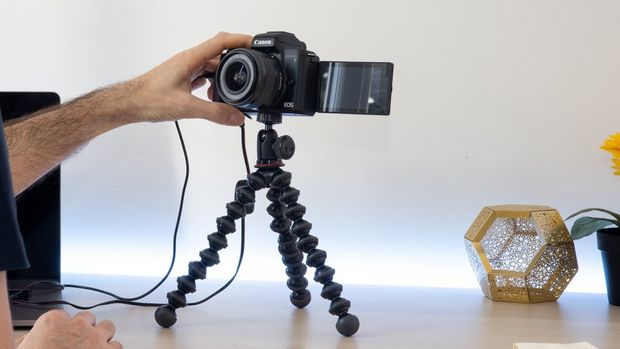
And finally, How to use your Canon camera as a webcam, open your favourite video conferencing provider and go to your video settings. Click on EOS Webcam Utility in your video settings and you are good to go. The EOS Webcam Utility software does not let you use your built-in mic on your camera, however you can use the microphone on your laptop or a headset connected to your computer for audio communication.


